 |
 |
Automated Document Processing with ImageRamp Batch
Easily Watch or Select Folders for Advanced Document Processing Automation
With ImageRamp Batch, automate file naming and folder delivery on multiple watched folders. Automate your document workflows using dual voting Zone OCR or barcode mining to perform splitting, file naming, folder delivery and routing, and more. Each of the three editions (Standard, Pro or Enterprise) are designed to meet your budget and throughput requirements all within the same environment.
Join our community of users who have incorporated ImageRamp Batch to help automate their document processing with unprecedented automation. Our users include government agencies, energy providers, manufacturers, health care providers and many more distinguised customers.
What's New in the ImageRamp Series
Batch users can process a folder of documents on demand or folders can be "watched" so that any file placed in the watched folder is automatically processed with your desired settings. Run Batch as a Windows Service with email notifications on automated restarts, excessive memory or CPU usage, or any unscheduled stops. New to batch document processing? Learn more with our tutorial What is Batch Document Processing?
ImageRamp Batch adds intelligence and efficiency to maximize your investment in the scanning process and is available in multiple versions to meet your budgeting needs. Use the Standard edition for simple barcode splitting and naming, or the Pro version to perform Zone OCR mining, advanced barcode features and more. Or use the Enterprise version and run it as a background service, dual OCR processing and much more.
ImageRamp Batch Key Features and Benefits
 |
 |
 |
 |
| Watch or Select Folders for Processing | Automate File Naming & Create Folders | Easy File Splitting | Create/Extract Index Data |
| Process 1 to 25 folders or process any folder on demand. | Base file and folder names on OCR extracted text, barcodes and system data. | Split files based on barcodes, zone OCR or text extraction from regular expressions | Create index data from barcode, Zone OCR, and more for integration with CSV or XML. |
 |
 |
 |
 |
| Data Mining | Convert File Formats | Regex Pattern Search | Cloud Repository Integration |
| Locate barcode or text for naming, splitting, indexing and more. | Process Word, PDF, TIF and image and save in PDF formats. | Use regular expressions to identify text strings and apply validation rules. | Watch or deliver processed files to leading platforms including Amazon S3, Drop Box, Google Drive, Box.net, Onedrive or SharePoint. |
 |
 |
 |
 |
| Create Bookmarks in your Documents | Use Advanced Quality Controls | Flexible License Options | Easy Dashboard User Interface |
| Insert bookmarks based on barcode or extracted text. | Identify extraction rule exceptions, privacy violations, and more. Use image cleanup options for improved accuracy. | Batch is available in multiple licensing options to best meet your functional and budget needs. | Dashboard interface makes it easy to use with access to learning videos and notifications. |
Jump to:
Modern, User-friendly Interface
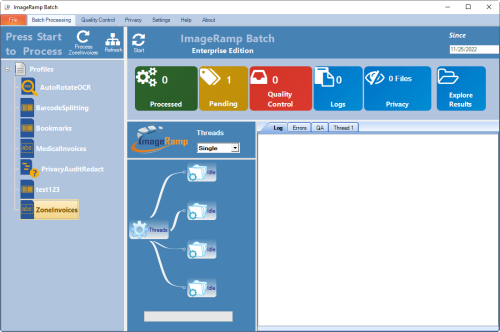
The Batch interface has been completely redesigned and incorporates a traditional look and feel. It’s designed to provide a simple user experience and shortened learning curve, allowing for more immediate use and benefits. The interface provides tile selections from the Home screen that allow for initiating the watching of folders and managing quality control. Built-in Learning Center and Notifications panels keep you informed and provide simple one click access to information.
 |
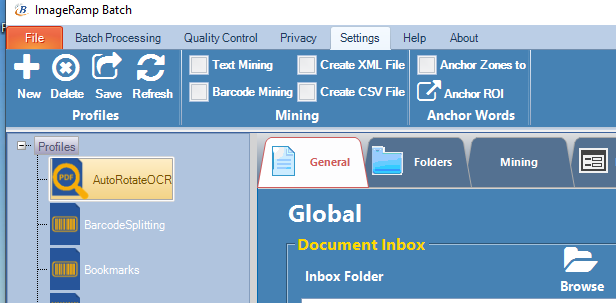 |
| ImageRamp Batch's modern, tile-based interface | Easily select and save settings, watch folders and perform quality control. |
Managing Folder Processing with Document Type Settings
Batch is simple to install and use in your environment. First, create and save a document profile called a "document type" where the desired processing tasks are defined. This document type is now a re-usable set of processing instructions that can be assigned to any Windows folder. You now have a batch scan process.
Easily Preview your Settings
Batch includes utilities to test your settings to see where your documents will split and how it is reading barcodes or extracting text. A built-in viewer highlights the extracted barcodes or text expressions and highlights pages that will be new splits with your current settings. Make simple adjustments before processing a directory full of files and you're ready to go.
Processing a Folder of Files and “Watching Folders”
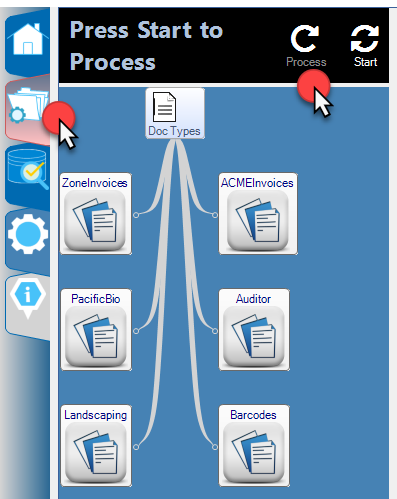 With the Watch Folder option, users select a document type which contains all the processing instructions such as file locations, file naming, splitting, and saving options, and begin the document processing. The progress of the processing can be monitored and a viewing window on the right displays files the processing progress.
If you would like ImageRamp Batch to automatically poll a folder for any new files and automatically process the files contained there, Watched Folders are designated in Batch. This function is based on Microsoft's Windows services. In Microsoft Windows operating systems, a Windows service is a long-running executable that performs specific functions and which is designed not to require user intervention. Windows services can be configured to start when the operating system is booted and run in the background as long as Windows is running, or they can be started and stopped manually when required. In Batch Standard and Pro editions, up to three folders can be watched and automatic polling can be started and stopped.
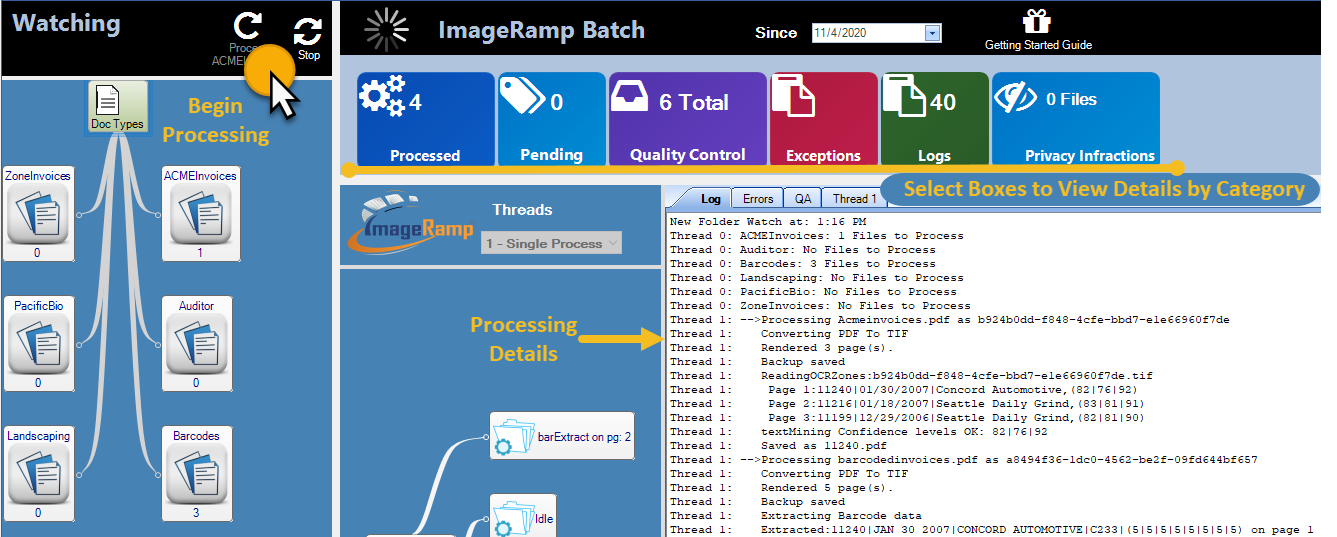 Once started, the service will continue to run as long as the computer is on and it is restarted every time the computer is started. To stop the processing, you must either turn the computer off or manually stop the service using the Stop button in ImageRamp Batch.
Not only are the document type's input and output folders designated, a backup folder is named as well. All files in the Folder to Watch directory will be processed and at end of the operation, this directory will be empty and the original source files are moved to the folder designated in the Backup Folder field. As batch processing cannot be undone, the backup directory is a safety feature where the original files can be placed so they can be viewed if there are any questions on the accuracy of the information and processing. Learn more at Watching Folders with ImageRamp Batch For Unattended Document Processing
Understanding Barcode Recognition, Text Mining and OCR Features
 So what document processing can you specify in Batch document types? In other words what can you do with the scanned or existing files in a "watched" folder? Barcode recognition, text mining and OCR functions provide ImageRamp Batch with powerful tools to find and extract valuable information from your documents. Batch can search for standard 1D and 2D barcodes to extract information to split, name and route files. Most commonly, barcodes are used to provide index information. As with barcodes, OCR technology can simplify processing of the scans or files by extracting important information for indexing, naming, and splitting. These technologies minimize data entry and make automated processing possible. Then information can be easily shared with your document management or EMR system. ImageRamp provides sophisticated image cleanup and enhancement features too. Cleaner images mean better OCR accuracy and customer search and retrieval. Read more 20 Tips to Solve Common Problems Reading Barcodes.
 Indexing Features
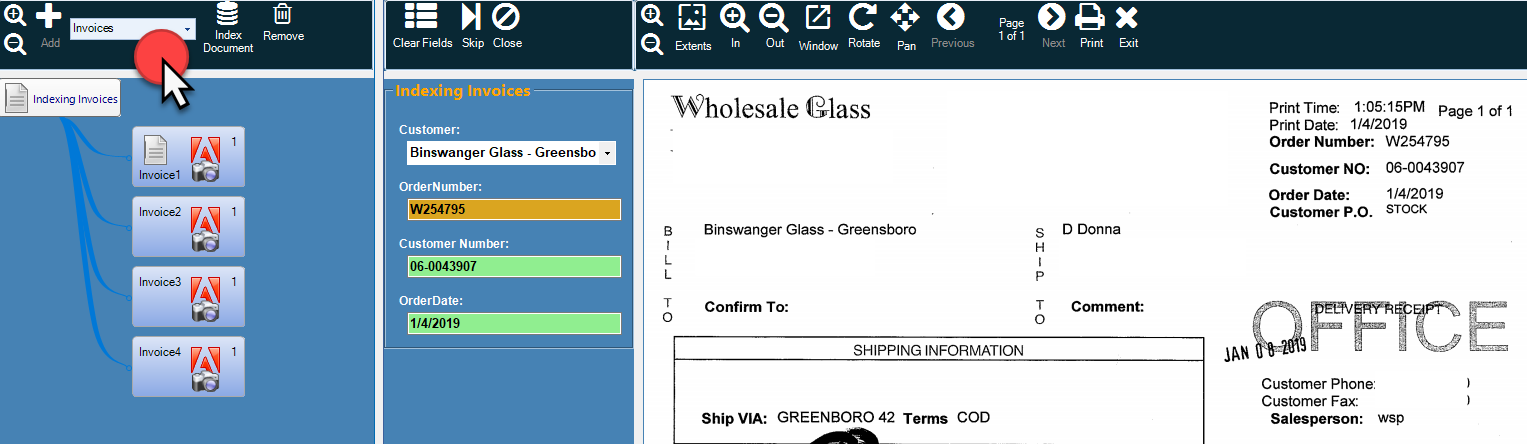
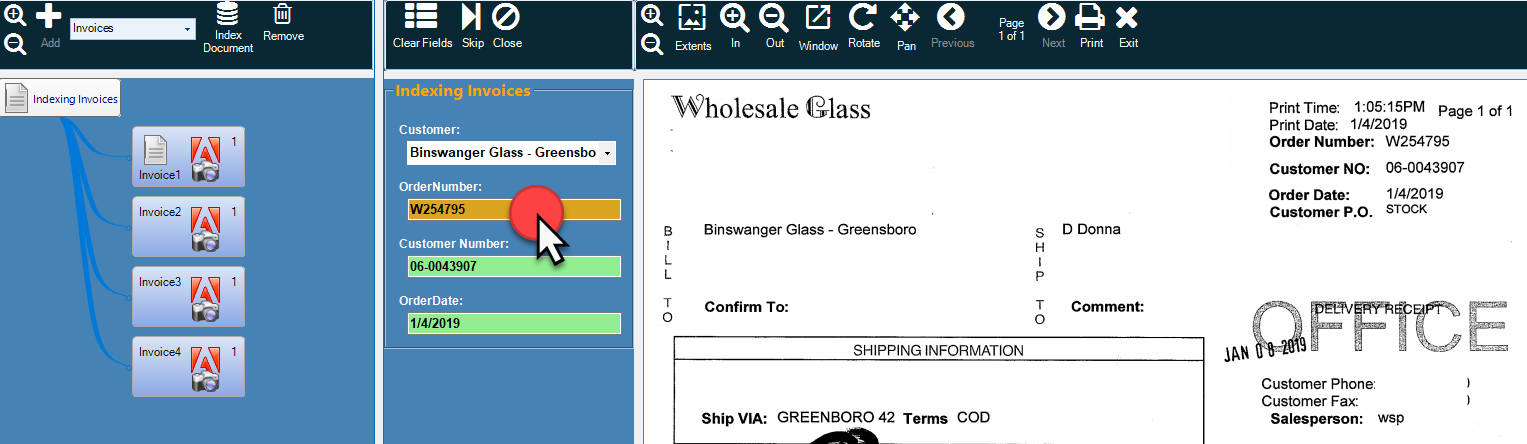
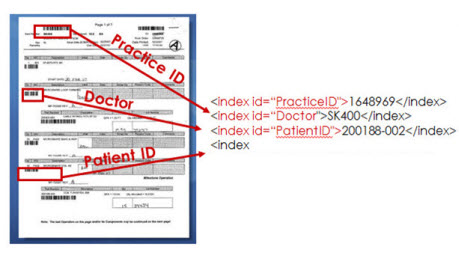
With ImageRamp Batch, capture index data at the document's point of entry into your workflow. Batch provides a flexible environment allowing users to set up various indexing configurations. Use recognized barcodes, text-mining (OCR) and system data to create CSV or XML files for integration into your own document management system or popular commercial databases. Advanced users employ regular expression (Regex) scripts to eliminate improper field indexing by defining rules for the index content.
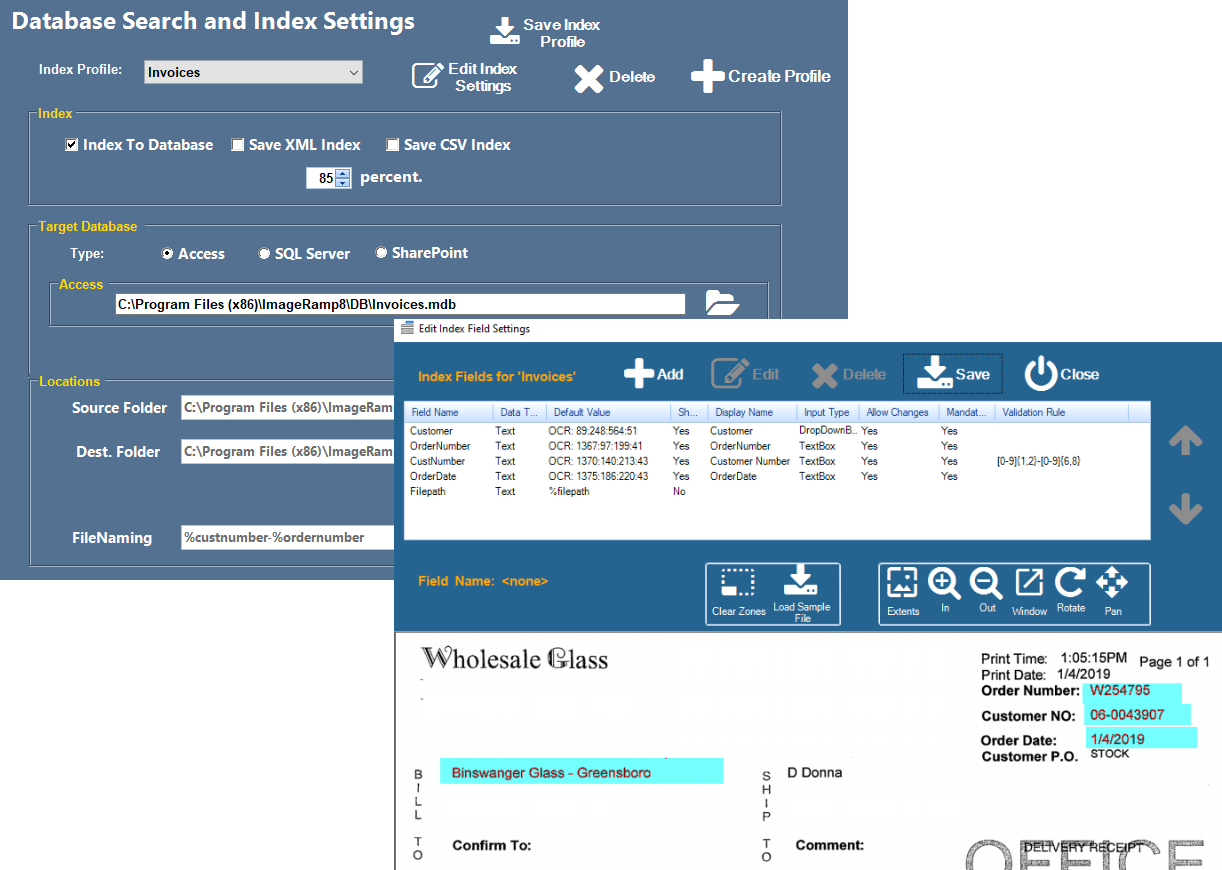
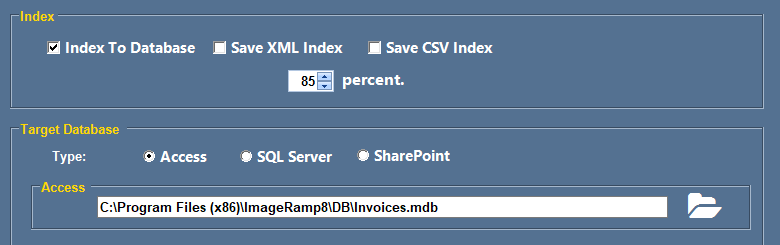
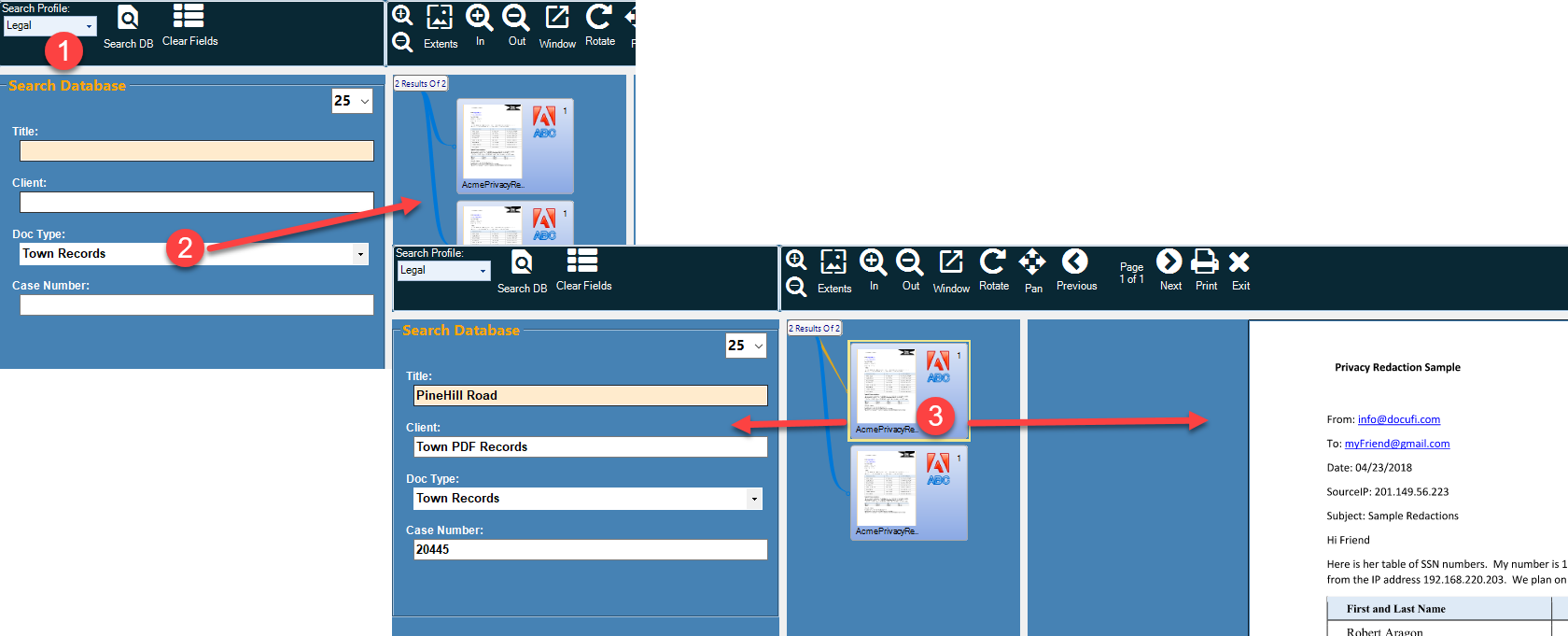
For interactive indexing directly into a database, we offer ImageRamp Indexer. Indexer lets you create Index Profiles to automatically capture your index data from your documents and share that information directly with the named database via MS-Access, SQL Server, ODBC, CSV, or XML interface options. Indexer licenses are also available for database search only also.
Quality Control with Ease
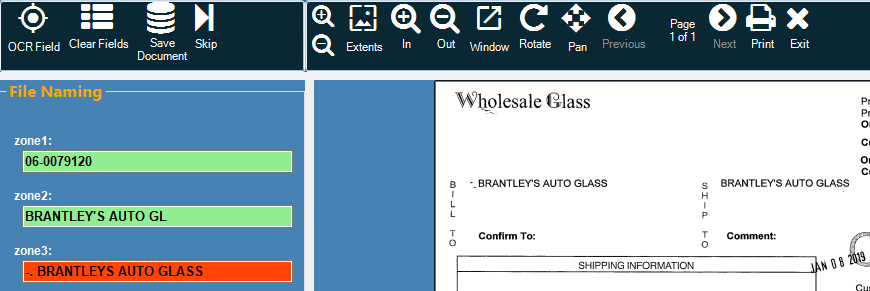
Batch provides easy indexing quality control by flagging any questionable documents based on your selected confidence level during the processing. Click on the Quality Control Processing tab to view and process these documents manually. View the document from within the application with the flagged areas color coded to indicate the questionable OCR or barcode extraction. Yellow and red highlights in the index fields indicate the data should be reviewed. To correct, edit the field or recapture (OCR) the index data with the OCR capture tool.
|
|
Quality Control Example: The quality control shows that Zone 1 and Zone 2 extractions are above your confidence level (green) and Zone 3 is not (red). You can correct the entry by editing the field or using the OCR capture to highlight the text on the document and recapture it correctly. |
File Naming, Splitting, Bookmarking and Routing Features
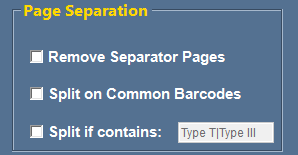
 Use highly reliable barcodes to automate the file splitting of your documents. Simply check the Split at Barcodes checkbox and additional options to tell the system to start looking for barcodes. ImageRamp creates new documents whenever appropriate barcodes are encountered. You have the ability to define which barcode types to look for. If your documents don't have barcodes, learn about our free barcode tool and slip sheet insertion.
OCR text mining technology can also be used to name and route files. Zonal OCR "reads" text from a specified zone on the document and extracts that text for indexing and file naming. Use Regular Expressions to capture precise OCR data for indexing, naming and splitting too.
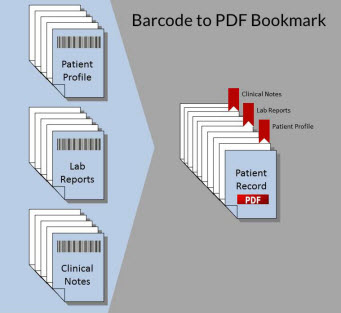
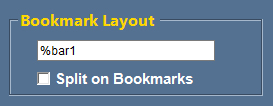
 Instead of splitting the file based on the barcodes, you can elect to insert bookmarks and keep the scanned stack as one file. Barcode to PDF bookmark can let you create a single file such as a complete patient record where the user can jump to bookmarks such as clinical notes, prescription orders, lab results, and more.
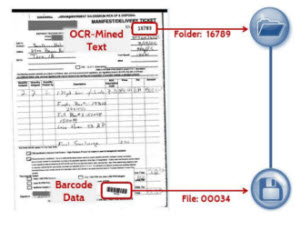
 Or, use the barcode data to name and identify routing needs to Windows folders. Files can be automatically placed in a folder that is named using any barcode data, scan date or time, and more.
Additional Features
Image Clean Up for Increased Accuracy and Readability
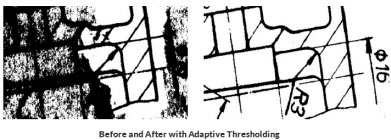 And did we mention that ImageRamp can enhance and clean up the images? Basic clean and enhancement functions such as deskew, despeckle, auto rotate, remove blank pages and remove lines increase the accuracy and reliability of the information extracted from the scans.
Accuracy is further improved with ImageRamp's advanced clean up functions. Adaptive thresholding assists in cleaning "dirty" documents or documents that have a colored background which interferes with the foreground data.
ImageRamp Batch incorporates two OCR engines to ensure the highest quality extractions. Learn more with Improving OCR Accuracy with Image Cleanup and Enhancement.
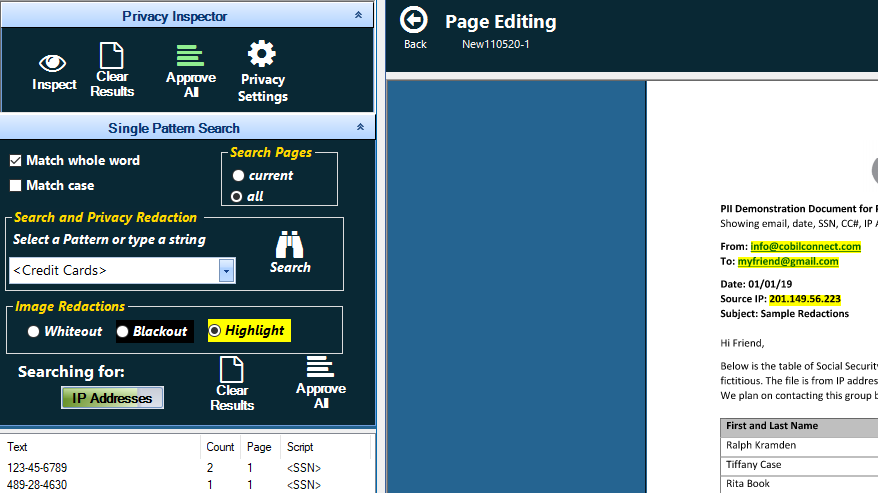 Privacy Discovery and Redaction
Redaction of sensitive content protects against the inadvertent disclosure of confidential or sensitive information. Easily protect against legal liability and publicity nightmares with appropriate redaction of names, social security numbers, emails, credit cards word patterns and more. Use ImageRamp Batch's Privacy Settings to highlight sensitive data in file output. Future releases of Batch will address comprehensive redaction tools such as those provided in our ImageRamp Composer product. Learn about Composer's comprehensive redaction here.
File Formats and File Conversion
ImageRamp Batch will process, MS-Word, PDF, TIF and image format files. Processed files are save in various PDF formats.
Integrating ImageRamp with Fujitsu ScanSnap Scanners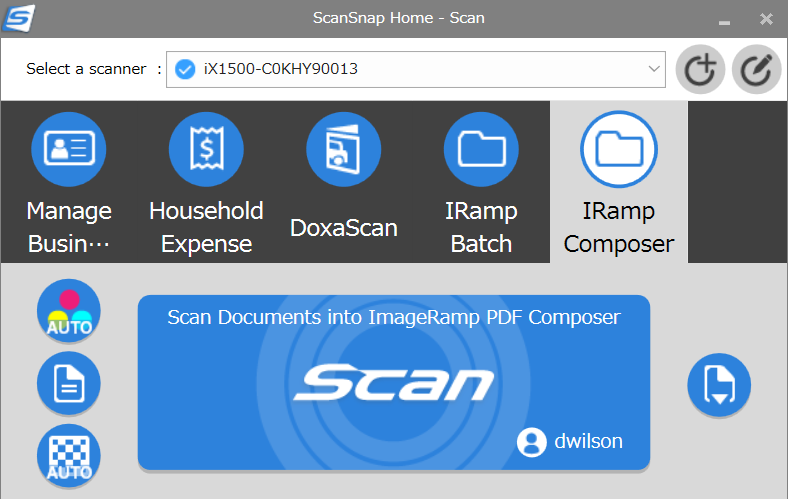
You can easily configure ImageRamp Batch and ImageRamp PDF Composer to work directly with Fujitsu's hugely popular ScanSnap scanners. ImageRamp is configured for use with the Fujitsu ScanSnap Manager, the scanner's main interface, with no additional user actions required. Shortcut buttons let users save their settings and destinations for easy selection right from the touch screen. After installation and setup, ImageRamp is now available to use with the ScanSnap Manager. Learn more at Using ImageRamp with ScanSnap Manager.
Cover Page or Separation Sheet Flexibility
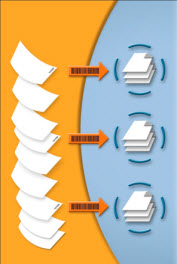
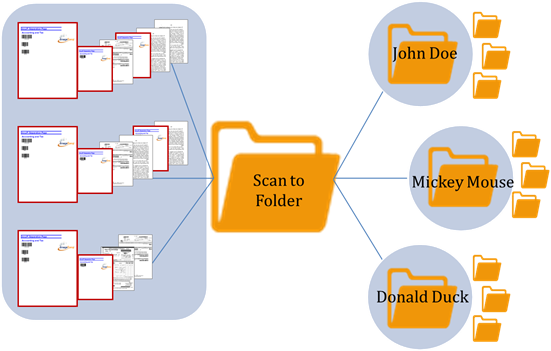 While users have long been able to create barcoded cover or separation sheets for file routing, naming and splitting purposes and Batch includes a free tool for just that, Scan Separator. This function has been improved with ImageRamp Batch and users can now place barcode data that is common to a stack of papers on a "master" cover sheet and then use subsequent cover sheets throughout the stack to provide more information. With this flexible feature you may want to store the location or routing of files in the"master" cover page barcode and use single barcoded pages for splitting and file naming. In the illustration below, the "master" coversheet in each of the stacks contains routing information to direct the files to the appropriate folder and subfolders and the subsequent cover sheets split the stack into files and names them. Our example could route the first stack of tax information to the file system as John Doe/2014/Income and the files could be named rentalhouse1.pdf and rentalhouse2.pdf.
This is set up by selecting the Duplicate the Cover Page checkbox and identifying the expected number of barcodes. If cover pages lack the expected number of barcodes, ImageRamp creates a Not Filed folder in naming configurations.
Choosing the Right ImageRamp Batch License
Scaled to meet your budget and functional requirements, Batch is available in three license options. Let us understand your processing needs and we can quote the exact product and product level needed for your workflow.
 Free Tools Included with ImageRamp Batch
Composer PDF - Assemble PDF files from PDF, Image OR MSword files and add security or Privacy redaction.
Scan Separator - create barcode coversheets with this free tool.
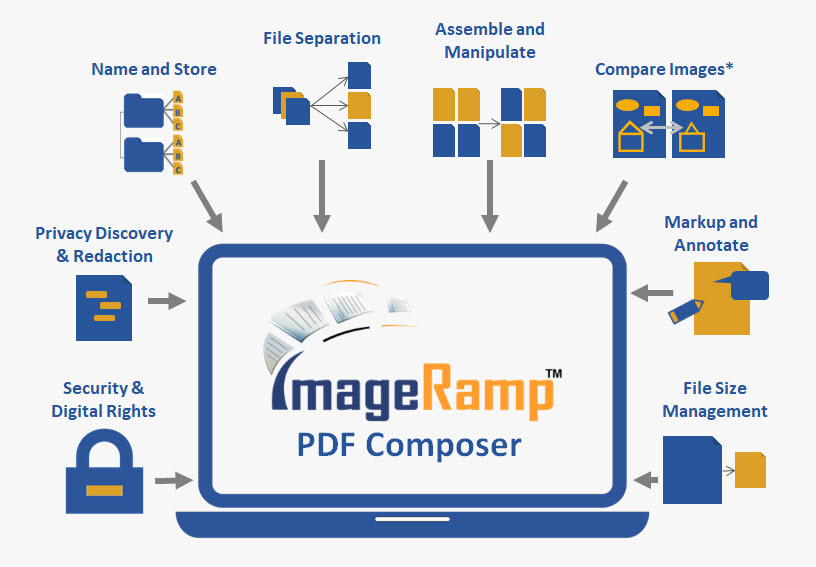
 Name and Store
 File Separation
 Privacy Discovery and Redaction
 Markup and Annotate
 Security and Digital Rights
 File Size Management
 Assemble and Manipulate
 Easy Scanner Integration