Blogs

Watch the SlideShares

barcode slideshare 144x108 play

Watch the SlideShare, 20 Tips to Solve Common Barcode Recognition Problems

downlaod

Free

Download our most popular solution for your document processing needs. You'll get a free version of ImageRamp Composer, a trial of ImageRamp Batch plus several fully functioning Free tools to produce OCR'd PDF, Create Barcode Separation Sheets, assemble PDF files and Validate barcode splits.

20 Tips to Solve Common Problems Reading Barcodes

Learn from these 20 tips and improve your barcode processing issues.

Within document imaging, barcodes indisputably provide a highly accurate way of providing information for intelligent processing of documents such as splitting, naming, and routing files and indexing. DocuFi’s ImageRamp Batch easily uses barcode information as described. This article describes some common issues with barcode images and suggests some possible solutions which may be available to optimize barcode recognition. 

Jump to:


Preprocessing Tips

Skewed Barcode

Noisy Background

White Speckles in the Bars

Badly Defined Edges

Lines and Other Marks too Close to the Barcode


Preprocessing Tips for Improved Barcode Recognition

The best barcode recognition starts with setting the highest standards for your forms and scanning workflow if it's within your control.

Tip 1: Set standards for pixels per element in your barcoded forms. For 1D barcodes use at least three pixels as the minimum bar length. For 2D use modules of 4 or 5 pixels.

Tip 2: Don't use variable length barcodes as you can’t guarantee accurate recognition if many elements are squeezed into a fixed area. If you do have to have variable length information, set a maximum size and account for that size on your document.

Tip 3: Do not locate barcodes on forms where they may be stapled or clipped which can lead to damage.

Tip 4: Design your forms with plenty of white space around barcodes, optimally ¼ inch.

Tip 5: Scan your documents with at least 300 dpi. For lower dpi scans, test to determine the lowest acceptable resolution.

Tip 6: If possible, orient 1D barcodes horizontally on your forms as most scanners are likely to pull the paper through the scanner from the shorter side. This orientation is the least affected by slippage during the scan which can distort the barcode image.

Tip 7: Do not use forms with colored background.


Skewed Barcode

Deskew barcodes with ImageRampImageRamp can read many skewed barcodes using default settings, but some barcodes may require the adjustments to the barcode settings.                       

Tip 8: Try setting SkewTolerance to a value between 1 and 5. SkewTolerance controls the maximum angle from the horizontal or vertical at which a barcode will be recognized by the toolkit.

Tip 9: You may also need to decrease the value of SkewLineJump to a value such as 1 though this will slow down the recognition speed. The SkewLineJump property controls the frequency with which the toolkit samples scan lines as it moves through an image. Increasing the value of the LineJump property will increase the speed at which an image is processed but may decrease the read rate.


Noisy Background

Clean barcodes with noisy backgrounds with ImageRampWith this problem, the entire image will typically contain black dots in the background. 

Tip 10: Try setting the NoiseReduction to a value between 5 and 10. If a value is specified in this setting, the toolkit will run an image through a noise reduction filter and remove marks that are unlikely to be part of a barcode before interpreting the barcodes. Use caution with larger values in this setting as larger values remove larger marks from the image which could destroy vital barcode information.

Tip 11: Try setting the MedianFilter. When this setting is set toTRUE, the toolkit will apply a median filter to the image before checking for barcodes. This is a useful option for high resolution images that contain speckles of black and white. It is not recommended for images where the black bars or white spaces are less than 2 pixels wide.

Tip 12: Try the UseOverSampling setting. When UseOverSampling is TRUE the barcode reader samples 3 lines at a time (skipping 2 lines between each sample) and takes the average pixel value. This is useful for images containing both black and white speckles.  


White Speckles in the Bars

Clean barcodes with white speckles in the bars with ImageRampIn this case the image will typically contain black dots in the background and white dots in the black bars. 

Tip 13: Try setting NoiseReduction to a value between 5 and 10 and Despeckle to True.

Tip 14: Try setting the MedianFilter. When this setting is set toTRUE, the toolkit will apply a median filter to the image before checking for barcodes. This is a useful option for high resolution images that contain speckles of black and white. It is not recommended for images where the black bars or white spaces are less than 2 pixels wide.

Tip 15: Try the UseOverSampling setting. When UseOverSampling is TRUE the barcode reader samples 3 lines at a time (skipping 2 lines between each sample) and takes the average pixel value. This is useful for images containing both black and white speckles.  


Badly Defined Bar EdgesClean barcodes with bad edges with ImageRamp
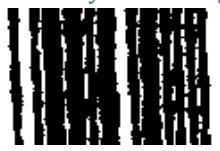
In these cases the bars have joined together in certain places, which makes it difficult for the toolkit to separate the bars and determine their relative sizes. 

Tip 16: Try setting NoiseReduction to a value between 10 and 20.


Lines and Other Marks too Close to the Barcode

Clean barcodes with marks too close to the barcode with ImageRampMost barcodes should have a quiet zone around the barcode to distinguish the barcode from the rest of the image; however, as in the example below, it’s not unusual for barcodes to be printed in boxes which interfere and may result in the barcode being ignored by the toolkit. 

Tip 17: Try setting the LineJump property. The LineJump controls the frequency with which the toolkit samples scan lines as it moves through an image. Decreasing the value of the LineJump property decreases the speed at which an image is processed, but may increase the barcode recognition rate.

Tip 18: You may also need to decrease the value of SkewLineJump to a value such as 1 though this will slow down the recognition speed. The SkewLineJump property controls the frequency with which the toolkit samples scan lines as it moves through an image. Increasing the value of the LineJump property will increase the speed at which an image is processed but may decrease the read rate.

Tip 19: Try setting the MaxLength. MaxLength defines the largest length for a barcode string, including checksum characters.

Tip 20: Try setting the MinLength. MinLength defines the smallest length for a barcode string, including checksum characters.

Managing Hospital Buildings and Facilities with CAFM, easy as 1-2-3EvolveFM

Through our spinoff, HAIvia, LLC, we can effectively help you manage your hospital and medical facility physical space by incorporating your CAD drawing files into the DocuFi CAFM solution. Integrating partner software from Simple Solutions FM and CAFM Resources, EvolveFM Computer Aided Facilities Management, our solution allows you to assign space classes for reimbursement, cleaning management, asset and inventory management and more. Additionally, our integration services can transform the space management data into a visual, interactive tool to guide decision makers with the HAIvia HAI Infection Prevention Dashboard

LoginNowCrop


Many Benefits of Computer Aided Facilities Management

With the system deployed, your teams can:

  • Assign rooms to space classes and automate the calculating of room type area totals.
  • Assign and manage teams to perform cleaning and other services.
  • Plan evacuation routes for optimal traffic flow patterns.
  • Manage cleaning inventory and assign them to specific rooms for easy review and automated order management.
  • Submit maintenance work orders through standard and mobile email notifications.
  •  Assign rooms to managers.
  • Easily color code room type classifications for custom configuraions for your reviewing needs.
  •  Work on standard browser applications.


Incorporating your Hospital's Floor Plans into DocuFi CAFM

Our professional services and software can import your existing AutoCAD drawing files into a system specifically design for the management of hospital physical spaces. We can work with your existing CAD Drawing files (DWG or DWF) and prepare them for area calculations and assignments. 

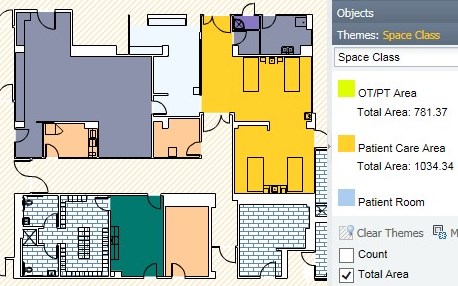
Easily assign spaces to space classes to determine square footage usage for reimbursement, team assignments, and asset management.

CAFM-Space2

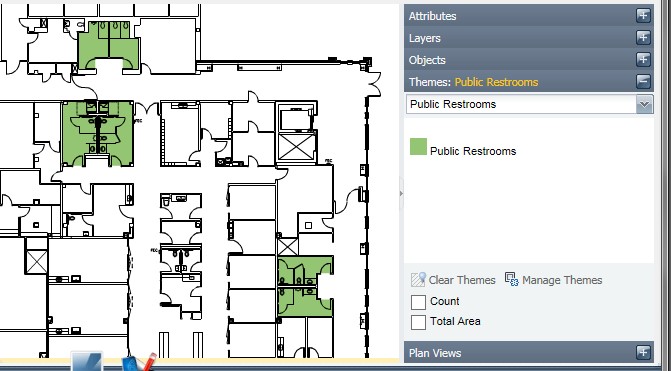
Easily identify specific room types with predefined selection themes. Here all public restrooms are visible for easy selection, assignments, and scheduling of work orders.  CAFM-PublicRestrooms
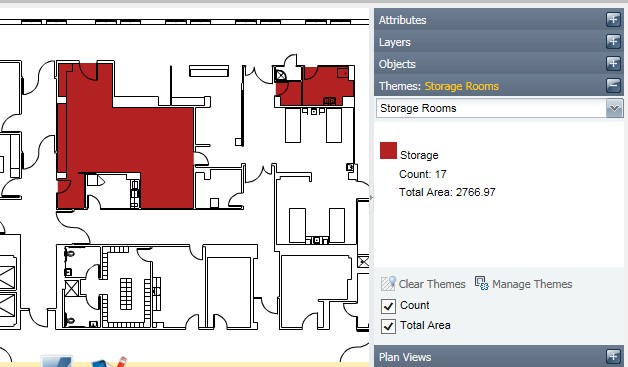
 Identify storage rooms and assign inventory with the rooms using our mobile applications. Learn more about HAIvia Mobile.  CAFM-Storage
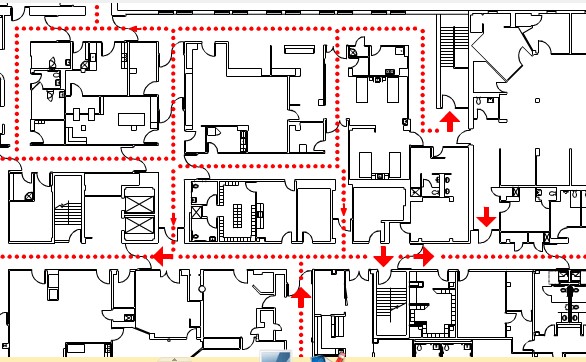
Plan evacuation routes  CAFM-Evac


Use the simple color coded room classification to identify your hospital square footage usage by room types. This helps in realizing optimal Medicare reimbursement and better manages inventory for ordering purposes. 

You can easily generate graphical reports to identify how much space is used for a room's allocating budget.


Inventory Management with CAFM

Using mobile devices, hospital staff can scan storage room inventory into the CAFM models allowing for optimal planning and automated inventory ordering. Read more about HAIvia Mobile.


Integrating DocuFi CAFM with DocuFi HAIvia Infection Prevention Dashboard

With HAIvia Dashboard platform, transform dull and static CMS data into a visual and interactive world to help make sense of this complex data. With this new data and knowledge visualization tool, quickly understand your scores and take action. If desired, we can provide integration services to also incorporate your other key information sources that help assess effectiveness of training programs, report on inventory, and provide trends to guide decision makers to effective decisions. Integrating DocuFi CAFM provides a simple, intuitive portal to your CAFM data from the dashboard. Read more.


Easily use ImageRamp with Fujitsu ScanSnap Scanners

   With ImageRamp and ScanSnap:
  • Split and rename files and folders to barcodes
  • Discover identity and privacy infractions
  • Redact sensitive data
  • Add and compose with other documents (Word, images, PDFs)
  • Secure and add digital rights and more
Learn more at

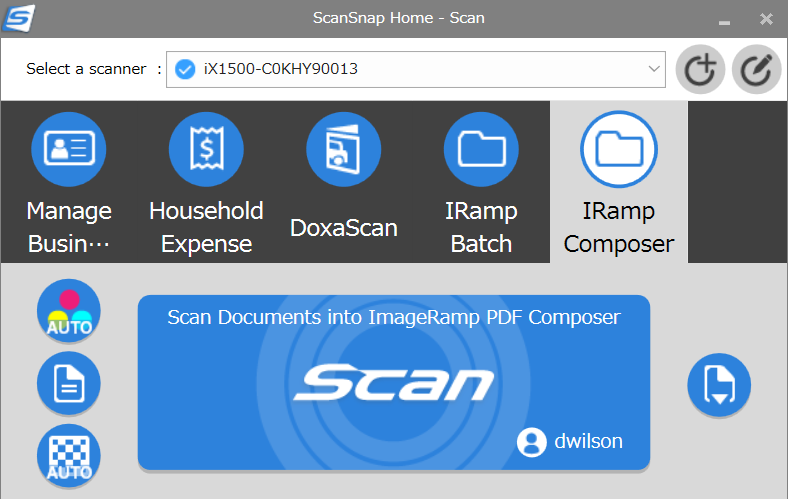
You can easily configure ImageRamp Batch and ImageRamp PDF Composer to work directly with Fujitsu's hugely popular ScanSnap scanners. ImageRamp is configured for use with the Fujitsu ScanSnap Manager, the scanner's main interface, with no additional user actions required. Shortcut buttons let users save their settings and destinations for easy selection right from the touch screen. After installation and setup, ImageRamp is now available to use with the ScanSnap Manager.

For ImageRamp Batch users, ScanSnap is configured to scan to a specific folder at the touch of a button. Once files are scanned to the folder, ImageRamp Batch can automatically process the files for those profiles configured for watched folders or processed on user demand according to the selected profile's setting.

With ImageRamp PDF Composer use ScanSnap scanners with the touch of a button. After installation and setup, ScanSnap Manager automatically launches the scanned document into ImageRamp PDF Composer.

imageramp on ScanSnap scanners


process of predictive analyticsPutting Healthcare Environmental Services Data to Work for You
Moving from Data Presentation
to Data Analytics is a Process

 get startted with es data analysis

Use Healthcare and Environmental Services Data Analytics in your Infection Prevention Toolkit Infograph


Click to View the
Companion

Presentation
or Infograph

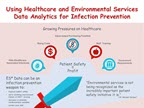
In this world of data overload, turning data into insight is a key differentiator in a healthcare system’s level of service and profitability. In Using Healthcare and Environmental Services Data Analytics for Infection Prevention, we discuss the use of Environmental Services (ES) data in providing insight for infection prevention and success with value-based care (decreasing reimbursement penalties).

Now let’s look at the process of turning data into a decision support platform. There are numerous articles that discuss turning data into intelligence and how to get there. Some common themes about the process of turning your data into a predictive analytics platform are:

  Put together a competent team that seeks input from all stakeholders and empower them with tools and authority.
  Get requirements from the people on the ground as well as the C-suite. Having a voice is key to buy-in. And without buy-in, data governance can be challenging.
earth icon  Know where you are at. What data do you have? How is it structured? Do you have any manipulation tools? Where are you on the popular Data Maturity Model continuum by Markus Sprenger that describes companies with no usable data to companies with comprehensive predictive analytics driving strategy?
  Determine what metrics are important to you. What is your end game? Pick the top metrics that give you the most return and start there.
  Make sure you have clean data. The old saying “garbage in, garbage out” is as true today as it ever was. Data governance is everyone’s job and making it a priority is a responsibility from the top down. Set standards for data across all your organizations.
  Start with visualization. Companies in Sprenger’s Data Maturity Model didn’t start in Stage 5, they evolved into Stage 5. Implementing visualization tools is a good starting point. Start by visualizing basic results and correlations over time. This can evolve as more data is captured and correlated into deeper analysis and finally predictive analytics.


Get started today! Investigate your available data and the impact visualization and analytics can have on your fight against healthcare acquired conditions and patient safety scores. Contact us for data analytics professional services.      

For your further reading:


Research Findings: Strong Collaboration Between Clinical and IT Leaders Supports Better Safety and Quality

A study by Healthcare Information and Management Systems Society (HIMSS), sponsored by Vocera Communications

Don’t Forget About the Basics

Everyone agrees that patient safety is a priority and improving the clinical environment is key to success. A recent study highlights the need for healthcare information technology and clinical teams to work together to better "facilitate, streamline, and document care" for better safety and quality. 

This is certainly not a new thought. The idea of IT working with the user to improve usefulness and quality has been around since the beginning of ones and zeros. Although this premise seems like a no brainer, it has not always been implemented and I'm sure those of us in the industry with some age showing have a number of stories of IT failures or subpar performance because the end user was not involved in creating the solution.

One of the reasons this may continue to happen is because workflows and tasks that were not automated are now coming online at an unprecedented pace with new technologies and implementations of existing technology. These tasks may involve a new set of users who traditionally may not have been working with IT. One such group of “new users” is the environmental services (ES) team.

Important Environmental Services Data

ES has important data that can be correlated with room data, personnel data and more to aid in infection prevention. Here are just a few of the data sets your ES department may be capturing

  • Disinfection/cleaning product usage
  • Cleaning staff inspection results (blacklight inspections, CDC checklist etc.)
  • Disinfection device (UV emission or aerosol/misting devices) events
  • Cleaning staff work logs (who, what, when, where)

Ultra Violet LightNew Technologies in Surface Disinfection

As numerous studies show, contaminated surfaces are a primary cause of harmful pathogens in hospitals. Along with standard infection prevention practices, new technologies to combat contaminated surfaces are increasingly executed by environmental services workers. New disinfection devices emitting UV light or vaporizing/misting disinfectant are used to supplement ineffective and inconsistent manual disinfection. Data on disinfection events can be captured and analyzed against patient infection data to determine effectiveness and improve the implementation of the technology. '

Environmental services generated data, is often overlooked by healthcare IT as a source to create new safeguards and streamline workflows, thereby improving patient care and safety.

The Bottom Line: Human CostA

With 1 in 25 patients incurring a healthcare associated infection (HAI) during their stay and over 75,000 deaths a year from HAIs in US acute care facilities, making the most of the available data is imperative. Let’s encourage health IT and environmental services teams to not overlook the value of environmental services data and its role in patient safety and quality.

Resources
About HAIvia, A DocuFi Spinoff

HAIvia strives to simplify and improve healthcare professionals’ decision making with easily accessible data analysis. Our solutions allow these professionals to easily capture and analyze their data and most importantly turn the data into actionable knowledge. This knowledge enhances patient quality of care and improves operational efficiencies in more than 500 hospitals every day. Learn more at HAIvia.