
How to Automate File and Folder Names with Keywords
Flexible Document File Naming
 |
|
Download our most popular solution for your document processing needs. You'll get a free version of ImageRamp Composer, a trial of ImageRamp Batch plus several fully functioning Free tools to produce OCR'd PDF, Create Barcode Separation Sheets, assemble PDF files and Validate barcode splits. |

You can automate the naming and destination path of your documents using barcodes and OCR Mined text strings within ImageRamp. ImageRamp's profile editor lets you create a reusable set of preferences to identify your keywords, barcodes or Zone OCR-mined text. Standard barcodes, special keywords or any text string can be used to identify your file name or destination folder.
List of Keywords available with ImageRamp
|
%Date |
Produces today’s date using the format: MMDDYYYY. For example, if today's date is July 14, 2010, the resulting value would be 07142010 %Date = 07142010 |
|
%Page |
Produces the page number. |
|
%Hour |
Returns the current hour of day |
|
%Minute |
Returns the current minutes of day |
|
%Time |
Produces military formatted time using hours, minutes, seconds and milliseconds. If the time is 2:12 p.m. with 10 seconds and 432/1000 of a second, %Time =141210432 |
|
%Barn or %Barcoden |
Produces the barcode designated in the name. Barcode1 through Barcode10 can be used. You can use a separator string to extract unique values from a single barcode or use multiple barcodes. See Samples below |
|
%Fieldn or %Zonen |
Uses the designated field id that is identified by the data mining definitions for this profile. This works with Zone OCR text extraction results. |
Renaming Using Keyword Codes
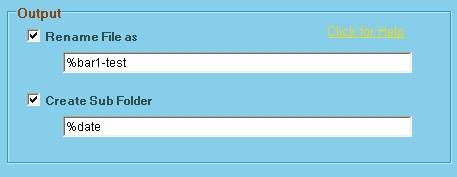
When user-defined Keyword Codes are entered in the Rename File As box, they create the file name based on the extracted barcode, original file name, date, time, and page number. ImageRamp Batch can detect multiple barcodes and reads the document from top to bottom, right to left or left to right. Keywords can also be used in the Create Sub Folder entry box and with free form text. The "%" preceeding the keyword name is required and the keywords are not case sensitive.
Working With Multiple Barcodes
When there are multiple barcodes on a page, you may create the file name based on any combination of the barcodes by using the Barcoden keyword. (Remember that you must select the barcode search direction in the Barcode tab of the PROFILES screen.) DocuFi Batch can use up to ten barcodes for file naming.
In some applications, barcodes have multiple discrete data elements in the same barcode which are divided by a separator or delimiter such as a dash “-“ or underscore “_”. With DocuFi Batch, the delimited multiple data elements can be recognized as individual barcodes.